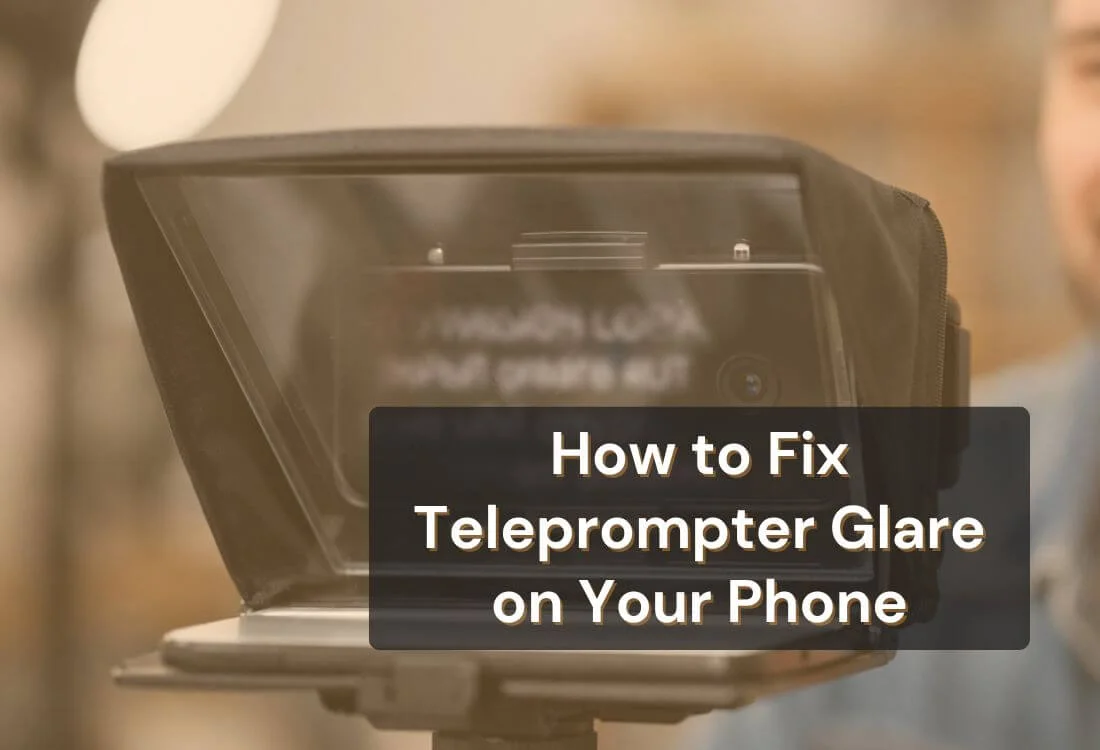


Phone teleprompter reflection issues can wreck a great take. You read smoothly, your pacing feels right, and then the playback shows glare on the glass or faint text floating near the lens. It’s distracting, and viewers feel it right away.
The fixes are usually simple. A few lighting tweaks, better screen settings, and cleaner camera alignment can reduce teleprompter glare and give you clearer eye contact on camera.
Phone teleprompter reflection issues happen when light hits the reflective panel and bounces into the camera. That light can come from your phone screen, a ring light, a window, or even a bright wall. The camera sees it as glare, bright patches, or ghost text.
Phone setups trigger this more often because everything sits close together. The phone screen is inches from the glass. The lens is inches from the glass. That tight space makes reflections easier to catch on camera.
Another catch: your eyes may not notice the problem in the moment. Cameras pick up glare patterns that look mild in real life and harsh on video. That’s why phone teleprompter reflection issues often show up during editing, when you least want surprises.
Smartphones are bright by design. Their screens fight daylight and stay readable outdoors. That brightness helps you read a script, and it also increases the chance of reflection.
Phone teleprompters also use smaller glass panels. With less surface area, the angle and placement have less room for error. A small shift in camera position can turn “fine” into “glare city.”
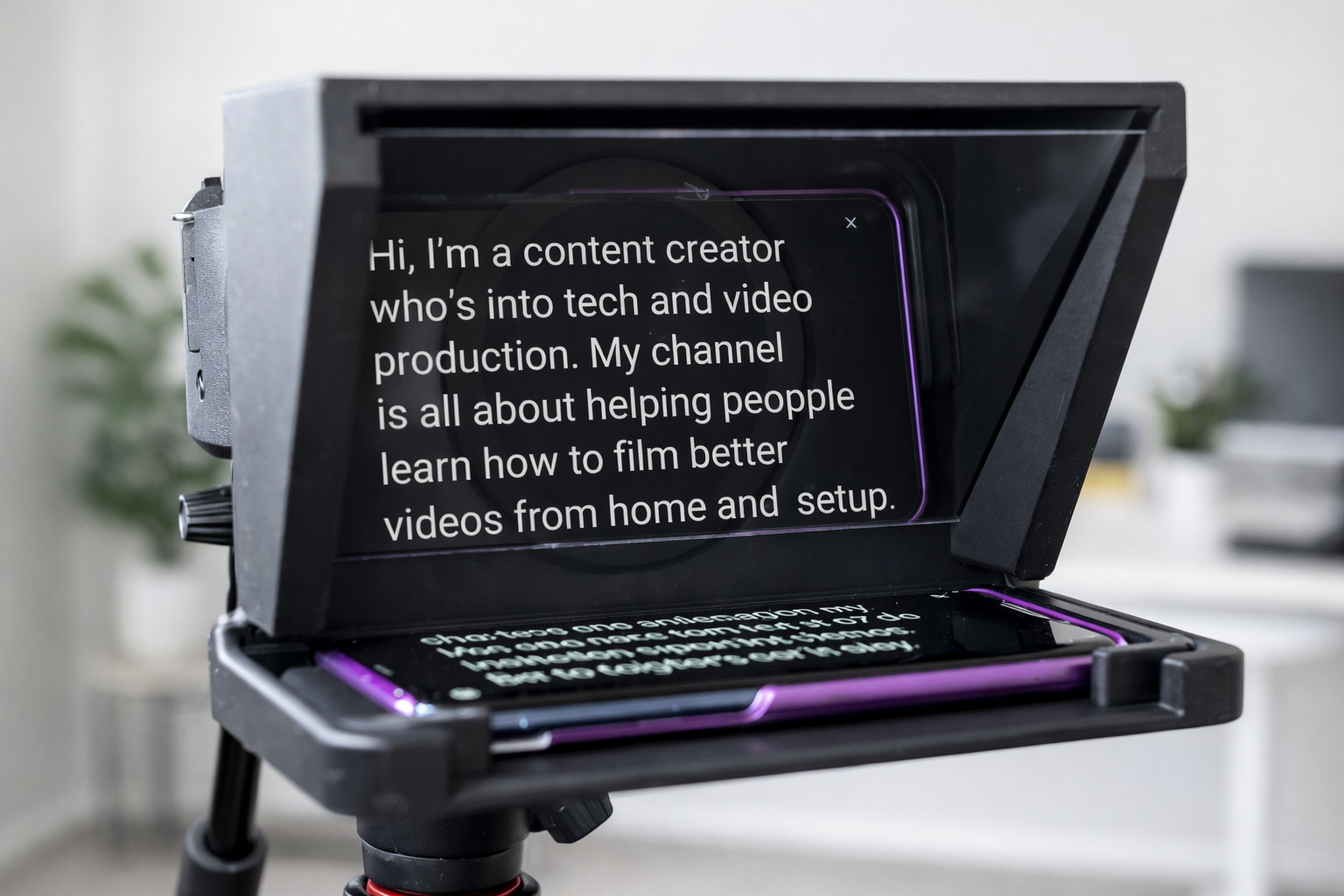
Screen brightness is the first thing to check. High brightness sends more light into the glass, so more light bounces back into the lens. That is one of the top triggers of phone teleprompter reflection issues.
Contrast matters too. A white background throws more light into the panel than a dark background. A clean dark mode setup often looks sharper on camera and creates fewer hot spots on the glass.
A creator-friendly fix is simple: lower brightness, then raise font size. Bigger text lets you read at a lower brightness level. That one change can reduce teleprompter reflection issues in minutes.
Some phone teleprompters use beamsplitter glass, which is made for camera use. It reflects the script toward your eyes while letting most of the light pass through to the lens.
Cheaper setups often use standard glass or acrylic instead. Those materials can bounce back more light, so phone teleprompter reflection issues show up faster, especially under bright lighting.
This is the frustrating part. You can lower brightness, move your lights, and align the lens, and still get glare. That usually isn’t user error. It’s the panel doing what it does best: reflecting light.
If you want a clear, practical breakdown of teleprompter glass types and how they affect on-camera clarity, there’s a guide that explains how beamsplitter glass works.
Lighting is a big driver of reflection issues. Lights aimed at the glass bounce straight into the lens. Ring lights can create a clear reflection pattern because the light source is circular and often sits near the camera line.
Windows can cause trouble too. Daylight is strong, and it changes during the day. A setup that looks clean at 9 a.m. can glare at 2 p.m. if the sun shifts.
Even your background can affect reflections. Bright walls and shiny surfaces throw light around the room and make the panel harder to control.
Viewers lock onto eyes. If the glass shows glare or ghost text, the eyes look “washed,” and the connection feels weaker. You may still sound confident, and the video can still feel off.
Research on gaze in video communication also points to trust. A CHI paper by Nguyen and Canny found that gaze and display setup can affect trust in video-based group interactions.
You don’t need to quote studies to make this real. You can see it on playback. Clean eye contact looks calm and focused. Reflections look busy.
Phone teleprompter reflection issues rarely fix themselves in post. You can lower highlights and tweak exposure, and ghost text can still show. Glare often leaves uneven bright patches that look like a filter mistake.
That leads to extra takes. It also breaks your momentum. Creators lose time, energy, and confidence when the setup fights them.

Start here because it’s fast and free.
A simple creator workflow that works:
That combo often solves phone teleprompter reflection issues without touching your lights.
Lighting changes do not need to be fancy. They need to be placed well.
A quick formatting rule: if you squint, the font is too small. Fix font size first, not brightness.
Traditional teleprompters usually give the lens more space behind larger beamsplitter glass. That spacing helps reduce reflections without much effort.
Phone teleprompters win on speed and portability. They also demand a bit more care with brightness and lighting. When your setup is tuned, phone teleprompter reflection issues drop to a level most viewers will never notice.
If you shoot in many locations, phone rigs can still look professional. The key is control. Control the screen. Control the light. Control the lens position.
Phone teleprompter reflection issues usually come from a few fixable causes: bright screens, harsh lights, shiny rooms, and off-center lenses. You don’t need a studio to solve them. You need a repeatable setup.
Start with app settings. Lower brightness and raise font size. Use a dark background. Then adjust lighting so it hits your face from the side, not the glass. Center the lens and clean the panel before you record.
If you want a smoother workflow, try Teleprompter.com and build a simple preset for your next shoot. A clean script display and steady pacing help reduce phone teleprompter reflection issues and keep your delivery looking natural.
Lower screen brightness and switch to a dark background with light text. Then move your key light off to the side and diffuse it, because direct light hitting the glass is a top cause of phone teleprompter reflection issues.
Your phone screen is reflective because it’s a bright light source facing a reflective panel, and glossy surfaces bounce light easily. High brightness, white backgrounds, and nearby windows or LEDs make phone teleprompter reflection issues show up more clearly on camera.
Place your key light about 45 degrees to the left or right of the camera and keep it slightly above eye level. Avoid aiming any light at the glass, and keep ring lights out of the lens line to reduce phone teleprompter reflection issues.
Open your script in the app, then use the text display settings to flip the text horizontally or vertically depending on your setup. On mobile, tap the “aA” icon or go to Text settings, and on the web you’ll find the mirror icons in the recording window.
Use a dark background, off-white text, a larger font size, and a moderate scroll speed so you can keep brightness lower. Pair those settings with clean lens alignment and diffused lighting to reduce teleprompter glare during recording.


.png)


.png)


