

You hit record, nailed your delivery, edited the footage, and you're ready to publish. But is your video actually accessible to everyone watching?
For millions of viewers, a video without captions, a readable transcript, or described visuals isn't just inconvenient, it's a barrier. And the audience is broader than most creators assume. According to a Preply survey (2026) of 1,200 Americans, at least 89% of respondents have used subtitles at some point, and that includes people watching in noisy environments, non-native speakers, and viewers who simply follow along better with text. Accessibility isn't a niche concern. It's how most people watch.
This video accessibility checklist gives you a practical, step-by-step review process to follow before every publish. Whether you're a content creator, marketer, educator, or coach, this guide covers what to check, why it matters, and how to build accessibility into your workflow from the start.
A video accessibility checklist is a structured pre-publish review process that helps creators verify their video content is usable by people with a range of disabilities, including hearing loss, visual impairments, cognitive differences, neurological conditions, and motor disabilities.
The checklist typically covers six core areas: captions, transcripts, audio description, on-screen text readability, video player accessibility, and seizure-safe visuals. When followed consistently, it transforms accessibility from an afterthought into a built-in production habit.
According to the W3C Web Accessibility Initiative (WAI), making media accessible requires addressing both the audio and visual components of a video and ensuring the playback environment itself doesn't create barriers.
Why this matters beyond compliance: Accessible videos aren't just legally safer, they perform better. Search engines can index transcripts. Captions improve comprehension for everyone. Clear delivery makes videos easier to follow in any environment. Learn more about how enhanced video accessibility can transform your content.
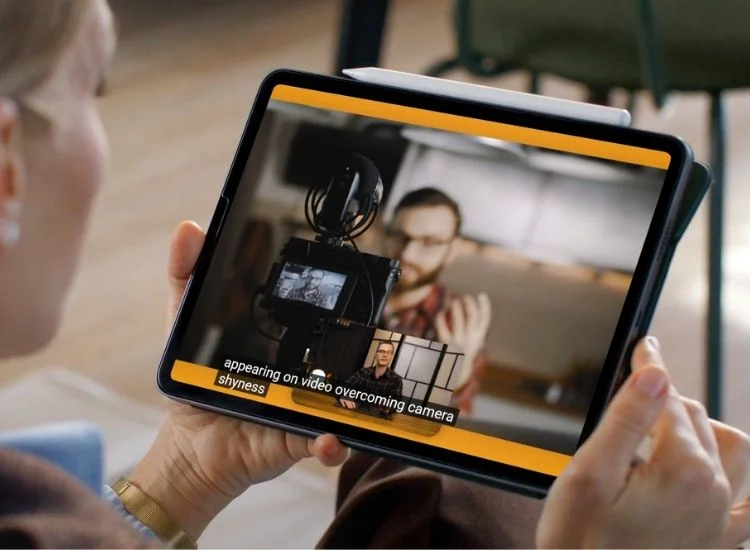
Captions are the most fundamental part of any accessible video. They provide a synchronized text version of spoken dialogue and meaningful sounds, making content accessible to deaf and hard-of-hearing viewers and useful to everyone else.
Not all captions are equal. Raw auto-generated captions from most platforms average around 80% accuracy, according to 3Play Media. That sounds reasonable until you realize that even a 95% accuracy rate still produces an error roughly every 2.5 sentences. For viewers who rely on captions to understand content, errors aren't a minor inconvenience, they break comprehension entirely.
The stakes are higher than most creators realize. A 2019 study by Verizon Media and Publicis Media found that "80% of consumers say they are more likely to watch an entire video when captioning is available." Cara Pantano, Sr. Manager at Verizon Media, noted in the study's findings that sound has become circumstantial, driven by mobile and on-the-go viewing, and that captions directly improve ad recall, brand perception, and memory quality.
The majority of caption users, the study found, are not deaf or hard of hearing. Captions aren't an edge-case feature. They're a mainstream viewing expectation.
According to the Described and Captioned Media Program (DCMP), quality captions must be:
Not sure whether to use open or closed captions for your content? This breakdown of closed vs. open captions covers the key differences and when each format is the right choice.
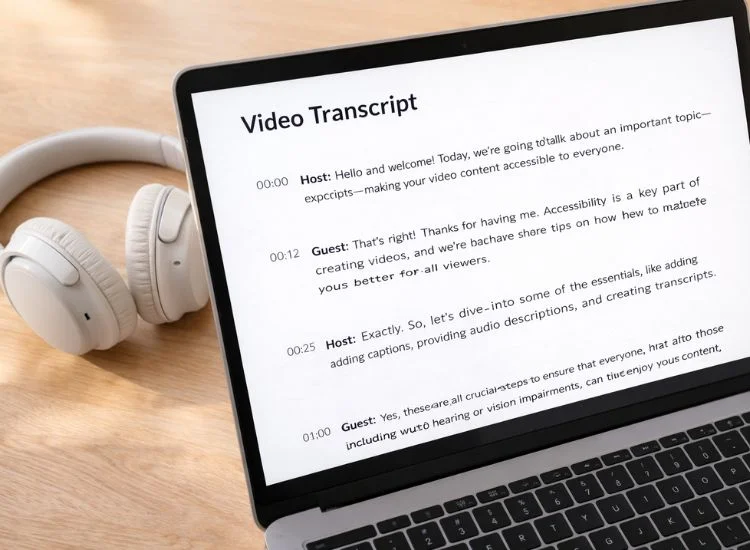
A transcript is a text version of your video's audio content. It serves viewers who cannot access video at all, supports SEO by giving search engines indexable content, and makes your video easier to scan and reference.
According to the W3C, descriptive transcripts are necessary for users who are both deaf and blind, since they cannot access captions or audio. A refreshable Braille display allows them to read a transcript; they have no equivalent way to access video or captions.
Not sure which tool to use? Here's a roundup of the best transcription software tools to help you find the right fit for your workflow.

Audio description (AD) is a narration track added to a video that describes visual information not conveyed by the spoken audio. It is designed for viewers who are blind or have low vision, but it is also essential any time a video's visuals carry meaning that isn't spoken aloud.
Most conversational videos, a talking head, a webinar with clear verbal delivery, may not require a full audio description track if the speaker already describes what they're showing. But audio description becomes necessary when your video contains:
The single most underused accessibility tool in video production is a well-written, clearly delivered script.
Most accessibility fixes happen in post-production, adding captions, correcting transcripts, inserting descriptions. But many of those fixes become easier, faster, and more accurate when the delivery is clear from the beginning.
According to W3C production guidance, accessible video benefits from clear speech, adequate processing time, and redundancy, speaking key information aloud rather than leaving viewers to read or interpret visuals.
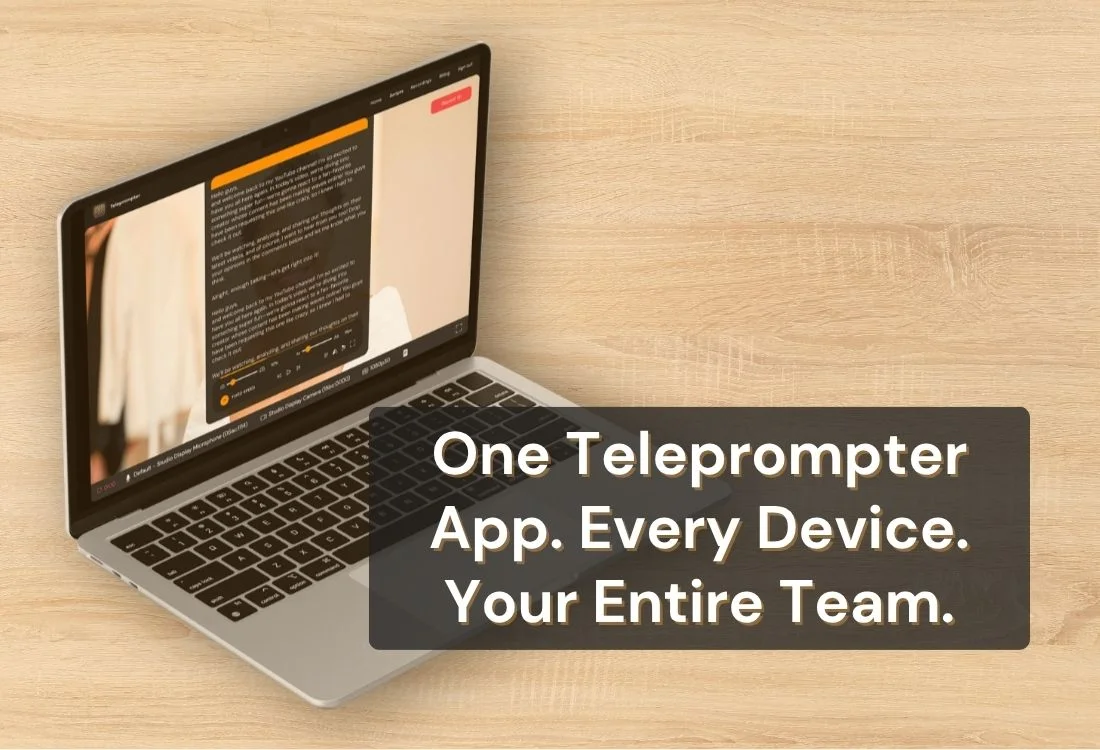
Integrating Teleprompter.com into your production creates a seamless, accessible video workflow. By utilizing a teleprompter, creators can achieve more deliberate narration, consistent pacing, and precise wording. This proactive approach minimizes verbal clutter, which in turn simplifies the creation of high-quality captions and transcripts. Ultimately, a clear and smooth delivery ensures that every subsequent accessibility requirement is much easier to fulfill.
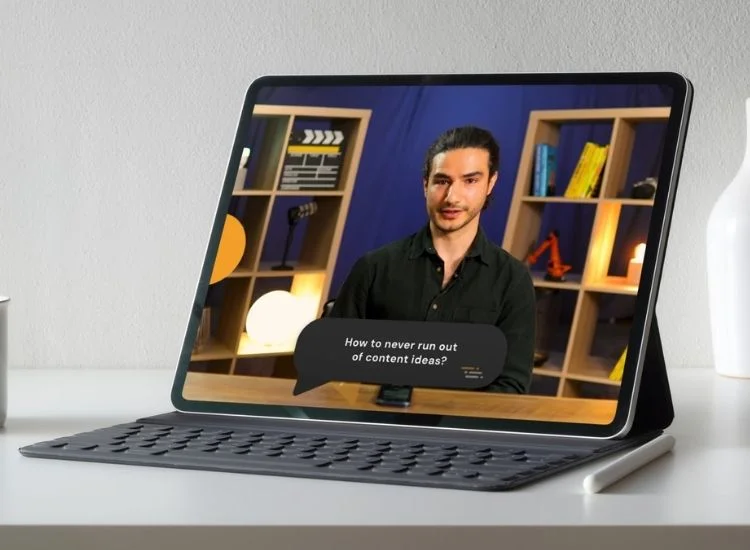
On-screen text is only accessible if viewers can actually read it. Poor contrast, small font sizes, and text that disappears too quickly create barriers for viewers with low vision, cognitive differences, or anyone watching on a small screen.
Accessible video content means nothing if the player that hosts it creates barriers. WCAG 2.1 Level AA requires that media players be operable by keyboard, with clearly labeled controls and caption support.
Flashing or strobing content poses a real safety risk for viewers with photosensitive epilepsy. Both W3C and WebAIM flag flashing content as a serious accessibility hazard.
The WCAG 2.1 guideline (Success Criterion 2.3.1) states that content must not flash more than three times per second, and that flashes must not exceed safe thresholds for size and brightness.
Pro Tip: If your video style involves fast-paced editing, run a flicker analysis using a tool like the Harding Test before publishing. It's a quick step that protects viewers and demonstrates responsible production.
Testing is the final gate between your video and your audience. According to WebAIM's evaluation guidance, accessible video must be checked for captions, transcripts, audio description, keyboard accessibility, and seizure safety before it goes live.
The table below summarizes the main standards and what they require for video content.
Understanding why subtitles are important gives additional context on the viewer-side benefits that go well beyond legal compliance.
Use this quick-reference list before every video goes live.
Accessible videos are almost always better videos. When creators script clearly, speak with good pacing, describe what they're showing, and publish with accurate captions and transcripts, the result is content that works for everyone, not just viewers with disabilities.
This video accessibility checklist gives you a practical framework to follow before every publish: check your captions, provide a transcript, describe your visuals, make your text readable, verify your player controls, avoid flashing hazards, and test before it goes live. None of these steps are complicated. Together, they add up to a meaningfully more inclusive experience.
And it starts before you hit record. Accessibility begins at the script.
Create clearer, more accessible videos with Teleprompter.com. Write smoother scripts, speak with better pacing, and deliver content your audience can follow from the first line to the last. When your delivery is clear, every downstream step, captioning, transcription, and audio description gets easier and more accurate.
Ready to build accessibility into your videos from the start? Try Teleprompter.com free and see how a cleaner script leads to a clearer, more inclusive video.
A video accessibility checklist is a pre-publish review tool that helps creators confirm a video has captions, transcripts, readable text, accessible playback controls, and enough spoken or described detail for viewers who cannot rely on audio or visuals alone.
For prerecorded videos with audio, W3C’s WCAG guidance says captions are required, with limited exceptions. In practice, captions should be standard for almost all creator content.
Captions are synchronized text shown during playback. Transcripts are separate text versions of the content. Descriptive transcripts also include important visual information.
You need audio description when important meaning appears visually and is not already spoken in the main narration. This often applies to tutorials, charts, walkthroughs, and text-heavy demos.
Yes. Transcripts, captions, and clearer page context can make a video page easier to understand, easier to scan, and easier to index. Accessibility is not a shortcut for rankings, but it supports better content quality and discoverability. This sentence is an inference based on how transcripts add indexable text and improve usability.
Creators should know WCAG 2.2. W3C says WCAG 2.2 is the current recommendation, and WCAG 2.2 content is backward compatible with WCAG 2.1 and 2.0.
References:
W3C Web Accessibility Initiative (WAI): Making Audio and Video Media Accessible
WebAIM (Web Accessibility In Mind): Captions, Transcripts, and Audio Descriptions
NIDCD (National Institute on Deafness and Other Communication Disorders): Captions for Deaf and Hard-of-Hearing Viewers


.png)


.png)