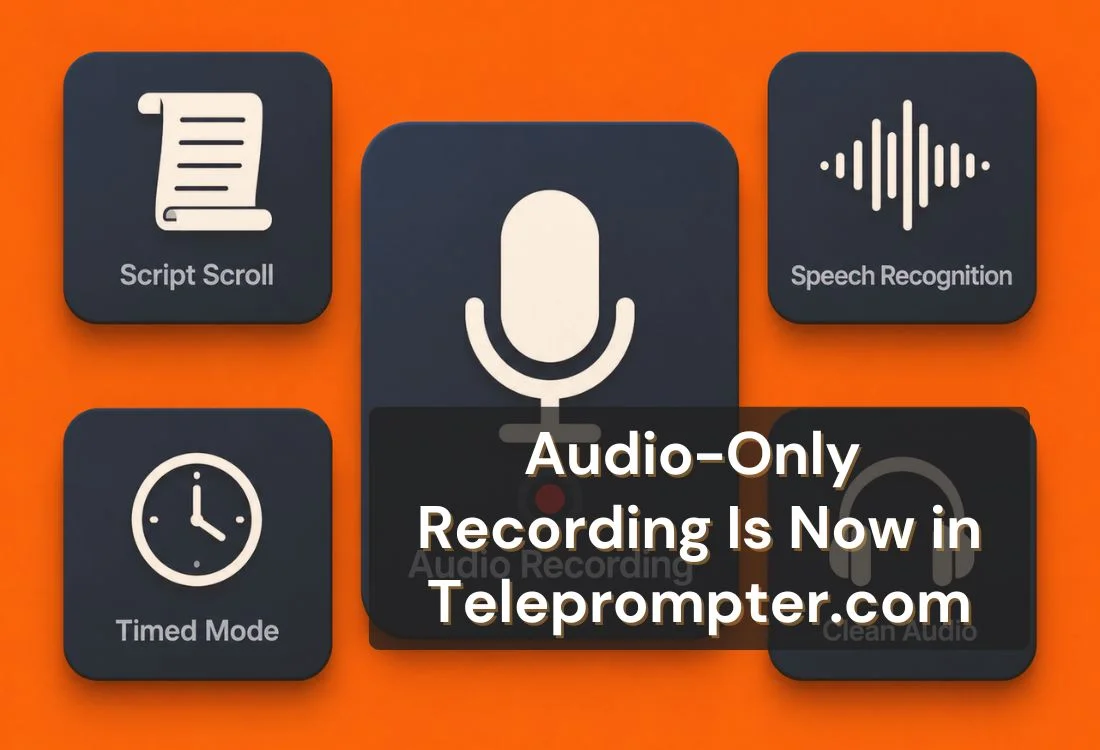


Teleprompter.com now supports audio-only recording, letting you capture clean voiceovers, podcast segments, and voice notes while reading your script. No video file, no camera setup required. Read your script at a controlled pace and save a high-quality audio track in seconds.
Audio recording in Teleprompter.com is a dedicated recording mode that captures your voice without activating the camera. The script scrolls exactly as it does in video mode, so your pace and delivery stay consistent. When you stop, the app saves a clean audio file directly to your device.
This matters because the camera was the only barrier for many users. Podcasters, voiceover artists, and educators often want the script-scrolling precision of a teleprompter without the overhead of a full video recording session. Audio-only mode removes that friction entirely.
The feature is built for any workflow where your voice is the deliverable, not your face. A few common use cases:
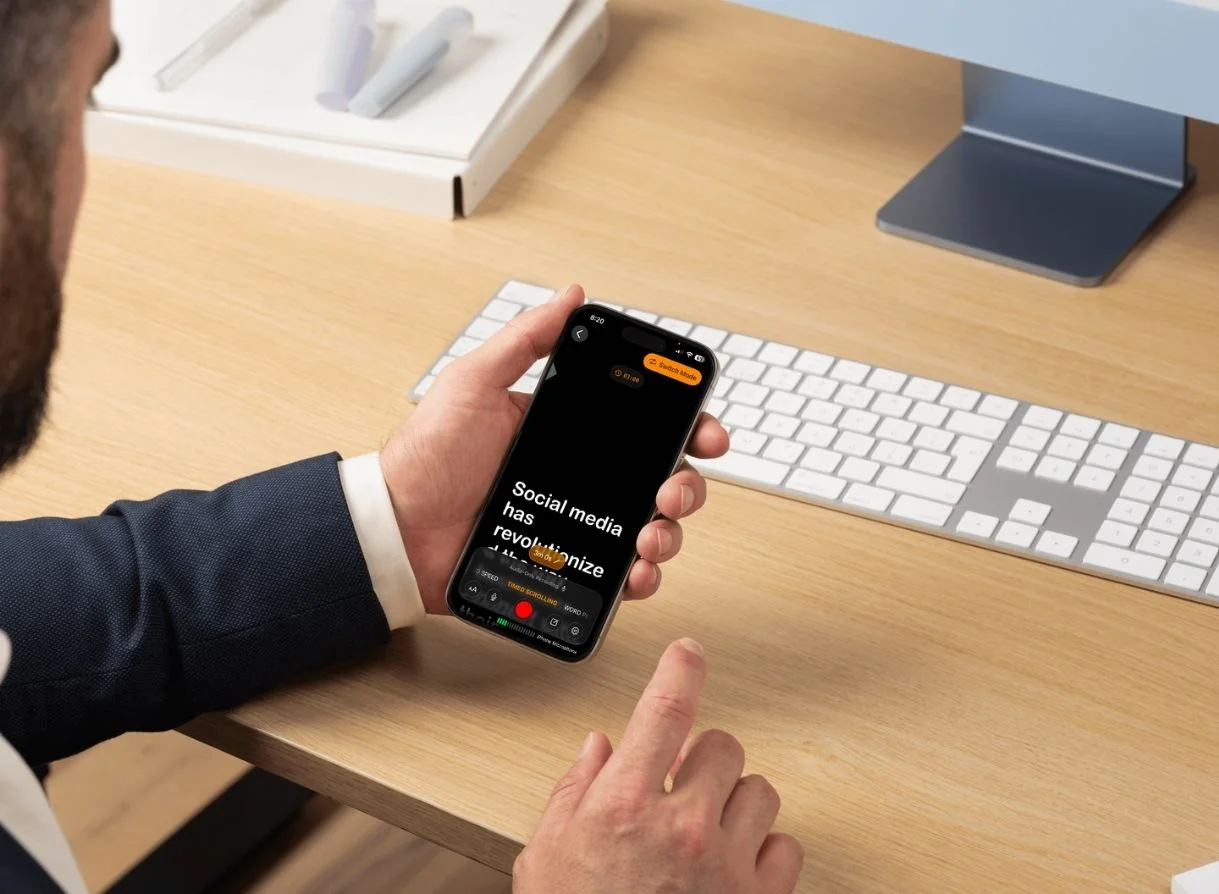
The workflow takes under a minute to start.
Most recording tools separate scripting from recording. You write elsewhere, copy the text somewhere visible, then record in another app. Teleprompter.com's audio mode collapses those steps into one.
The result is shorter session times, fewer retakes from losing your place mid-script, and audio that matches the pacing of a well-rehearsed take.
Teleprompter.com has always been built around one idea: your script and your delivery in one place, without friction. Audio recording extends that to every workflow that doesn't need a camera.
Write your script, load it in the app, and record. Your audio is ready before most tools have finished buffering.
Start using Teleprompter.com today with a Pro free 7-day trial and see how audio recording can transform your content workflow.
Audio recording in Teleprompter.com is a recording mode that captures your voice while your script scrolls on screen, without activating the camera. It saves a clean audio file to your device and is designed for podcasts, voiceovers, voice notes, and any project where video is not needed.
Audio recording is available on iOS, Android, and the Teleprompter.com web app. Open Teleprompter.com in any supported browser or download the app from the App Store or Google Play to access it.
Yes. Teleprompter.com's VoiceGlide mode works in audio recording, automatically syncing the script to your speaking pace. As you talk, the text follows your voice, pauses when you pause, and picks up right where you left off, so the script stays in sync without any manual speed adjustments during the recording.
Your audio file saves automatically to the Recordings section inside the app. From there you can share it, export it to your editing software, or upload it to your podcast host.
Audio-only mode skips the camera entirely, which means faster processing, smaller file sizes, and no need to strip audio from a video file in post. It also removes the visual setup steps, camera framing, lighting, and background, so you can start recording faster in any environment.


.png)


.png)