

A talking head video is a direct, face-to-camera format that helps you explain ideas clearly and build trust fast. If you want to learn how to make a talking head video, this guide gives you a step-by-step process that improves your script, delivery, audio, lighting, and editing.
A polished talking head video usually comes down to control. You control the message, the pace, and what the viewer pays attention to. That’s why some videos look “easy” even when they’re tightly planned. The creator removes friction before recording, so the delivery feels simple and confident.
Focus on these four elements first:
If you set these foundations early, every next step becomes more straightforward. You’ll script faster, record with fewer retakes, and edit with a clear plan. Then the step-by-step process below will feel like a checklist you can repeat, not a guessing game.
A repeatable workflow keeps your message clear and your production time low. When you follow the same steps each time, your videos start to look consistent across lighting, audio, framing, and pacing. That consistency helps viewers trust your content and helps you edit faster.
Use this quick sequence as your baseline:
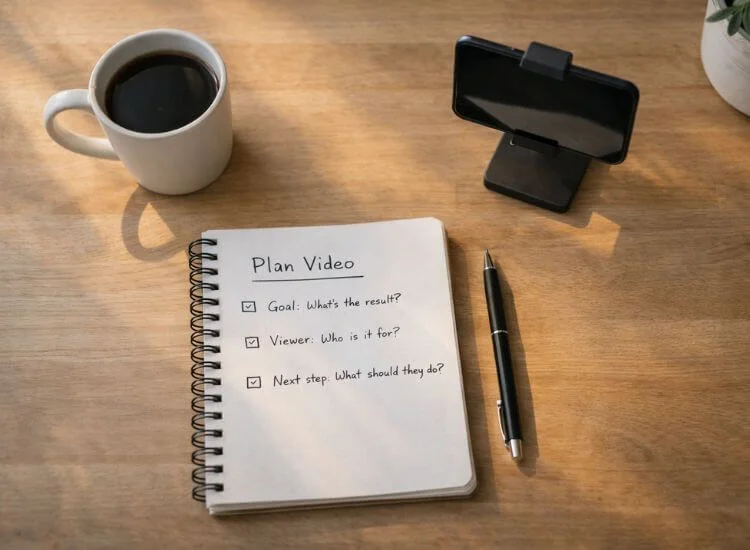
Planning is the step that makes the rest of the process smoother. When you decide your goal, audience, and structure up front, you stop guessing on camera. You reduce rambling, which means fewer retakes and faster edits.
Start with three quick decisions:
Then outline 3 to 5 main points. Each point becomes a short section you can record and edit as a clean block.
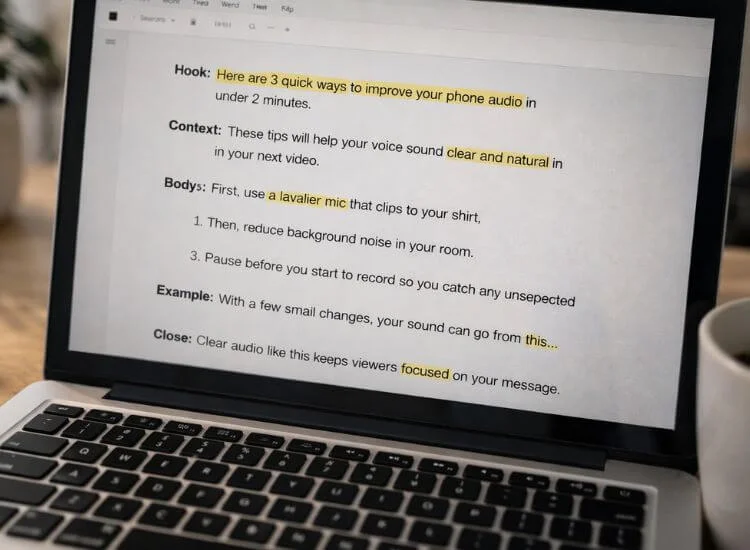
A well-crafted script keeps your delivery clear and on time. It also protects your message. You avoid filler, repeated lines, and long detours that slow the video down. A script also makes it easier to repurpose your content into captions, transcripts, and blog posts.
Use a simple structure:
Keep your sentences easy to say out loud:
Also watch for weak phrasing that softens your point. Replace words like “maybe,” “kind of,” and “try to” with clearer language when it fits your tone. A quick confidence score check can help you spot vague lines and tighten them before you record.
Start faster, then make it sound like you
A script tool can give you a fast first draft, especially for hooks and outlines. The important step is revision. Read your script out loud once, then adjust any lines that feel stiff. The goal is not perfect writing. The goal is a script that sounds like something you would actually say on camera.
A clean shot makes your video easier to watch and more trustworthy. Your framing, background, and stability matter more than owning expensive gear. A simple setup that looks consistent also helps your channel look more professional over time.
Lock in these basics:
Frame for a natural look:
Choose a background that stays quiet:
If you're filming from the same spot every time, it's worth building that consistency into the room itself instead of resetting your camera and background each session. Once you've got a corner that works, setting up a YouTube studio at home covers the camera position, lighting, and room layout in more detail, so your framing stays steady without extra setup time on recording day.
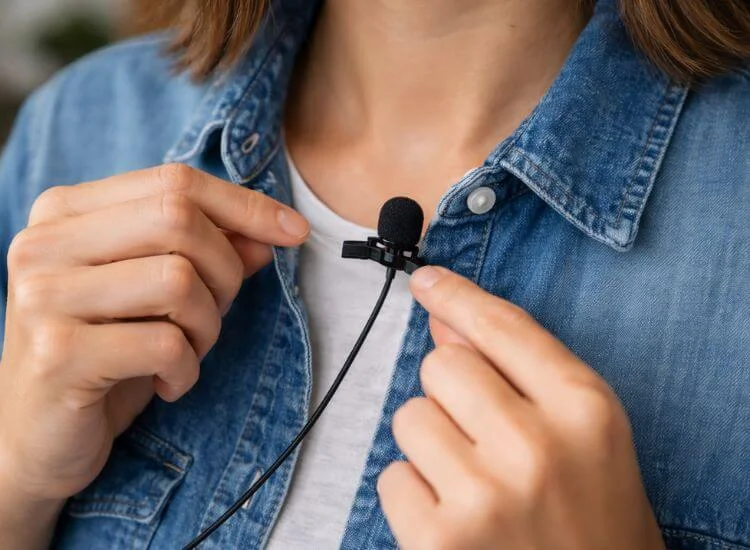
Audio quality shapes how professional your video feels. Clear speech keeps attention, improves understanding, and makes captions more accurate. Clean audio also makes your edits easier since you can cut and rearrange clips without noticeable jumps in sound.
Improve audio with a few practical moves:
Reduce room echo:
Add captions for accessibility and retention:
If you’re building a quiet recording corner, this budget-friendly guide breaks down easy room setup and sound control ideas.
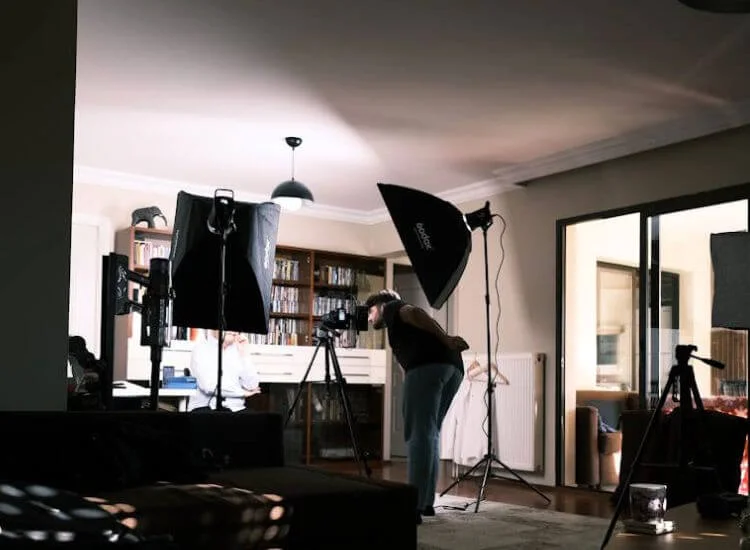
Lighting makes your video look clean and sharp. Soft light reduces harsh shadows and helps your face look even on camera. Good lighting also helps phones and webcams avoid grainy footage.
Start with the simplest setup:
Use one key light when you record at night:
Keep your color consistent:
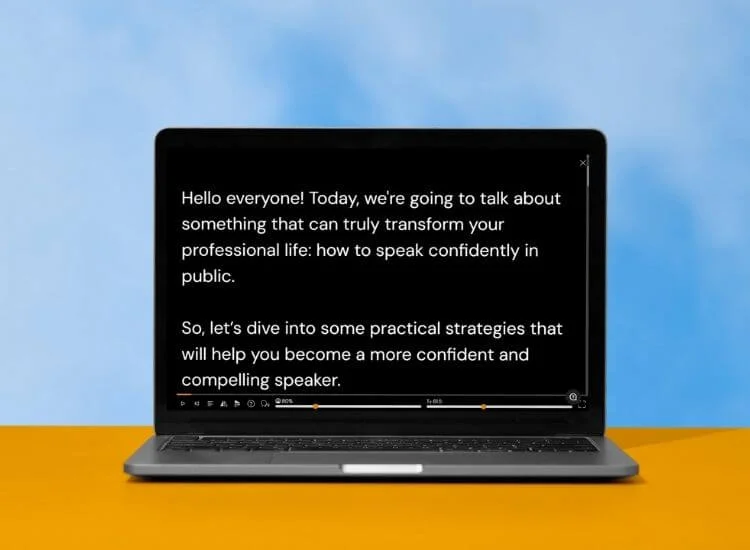
A teleprompter helps you stay on message while keeping your eyes close to the lens, so your delivery feels direct and steady. Teleprompter.com makes it easy to load your script, control the scrolling speed, and stay on track while you record.
Set up your script for easy reading
Match scroll speed to your speaking pace
Smooth out the first 20 seconds
Practice your opening until it flows, then tighten any long phrases that make you rush. Create a Teleprompter.com account, run a quick test take, and start recording with less stress.
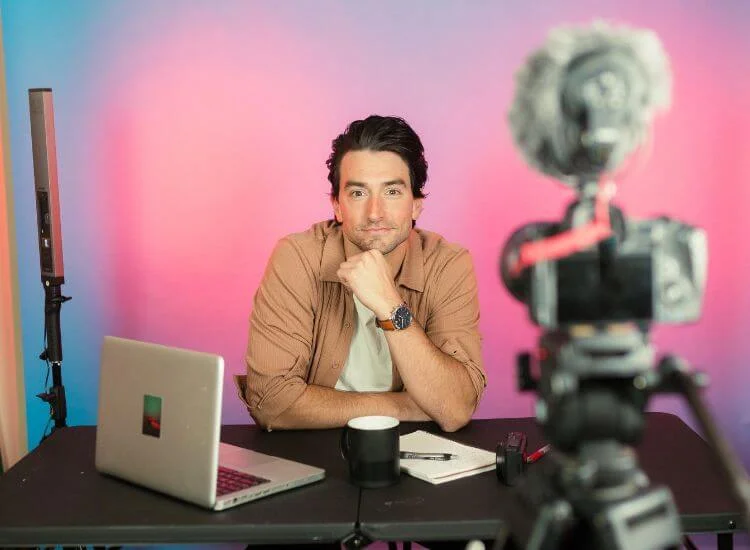
A repeatable process gives you consistent results. It also lowers stress since you know what to do each time. When you record in a structured way, you create clean edit points and keep your energy steady.
Use this pre-record checklist:
Record in sections:
Keep delivery clear:
Effective video editing transforms a quality recording into a compelling final product that viewers will watch to completion. Your main goal is clarity. Remove anything that slows the message, then add light structure so viewers can scan and stay oriented.
Start with a clarity edit:
Add a simple structure that helps mobile viewers:
Clean up audio in post:
Export with consistent settings:
Publishing steps shape how your video appears in search, suggested feeds, and AI summaries. Clear metadata and structure help both people and systems understand what your video covers. This also supports long-term discovery.
Use search-friendly titles and descriptions:
Add a transcript:
Use chapters for longer videos:
Repurpose from one recording:
Talking head videos tend to perform well across social platforms when they are structured clearly and optimized for search. On platforms like Facebook, video performance data shows how strong engagement can be when content is concise, well-paced, and designed for mobile viewing. You can explore more details in these Facebook video statistics.
A talking head video feels natural when the viewer can focus on your message without distractions. Keep your points tight, speak in short thought groups, and prioritize clear audio and soft light. A steady eye line and clean transitions do more for professionalism than extra gear.
Improve one part at a time. Tighten your hook on the next upload. Clean up audio on the one after that. As your setup and script style stay consistent, recording gets easier, and your videos become easier to watch.
Teleprompter.com can help you stay on script while keeping your eyes close to the lens when you want that extra consistency.
Use a steady camera at eye level, soft lighting on your face, and clear audio from a lav or USB mic. Keep your script tight with 3 to 5 points, record in short sections, then edit out long pauses and add captions for mobile viewers.
Place your script as close to the camera lens as possible and format it with short lines and clear paragraph breaks. Use a scroll speed that matches your speaking pace so your eyes move less and your delivery stays natural.
Frame a medium close-up with your eyes near the top third of the screen and a small amount of headroom. Keep the camera at eye level, center your face, and leave a little space around you if you plan to add captions or on-screen text.
The most common mistakes are weak audio, harsh lighting, a cluttered background, and a script that sounds like an essay. Fix them by using a microphone, facing a soft light source, simplifying the frame, and writing short sentences you can say out loud.
A talking head video example is a creator explaining a “how-to” lesson straight to camera, like a short tutorial on improving iPhone audio or a quick breakdown of a marketing tip. The focus stays on clear speaking, steady eye line, and simple visuals like captions or headings.


.png)


.png)