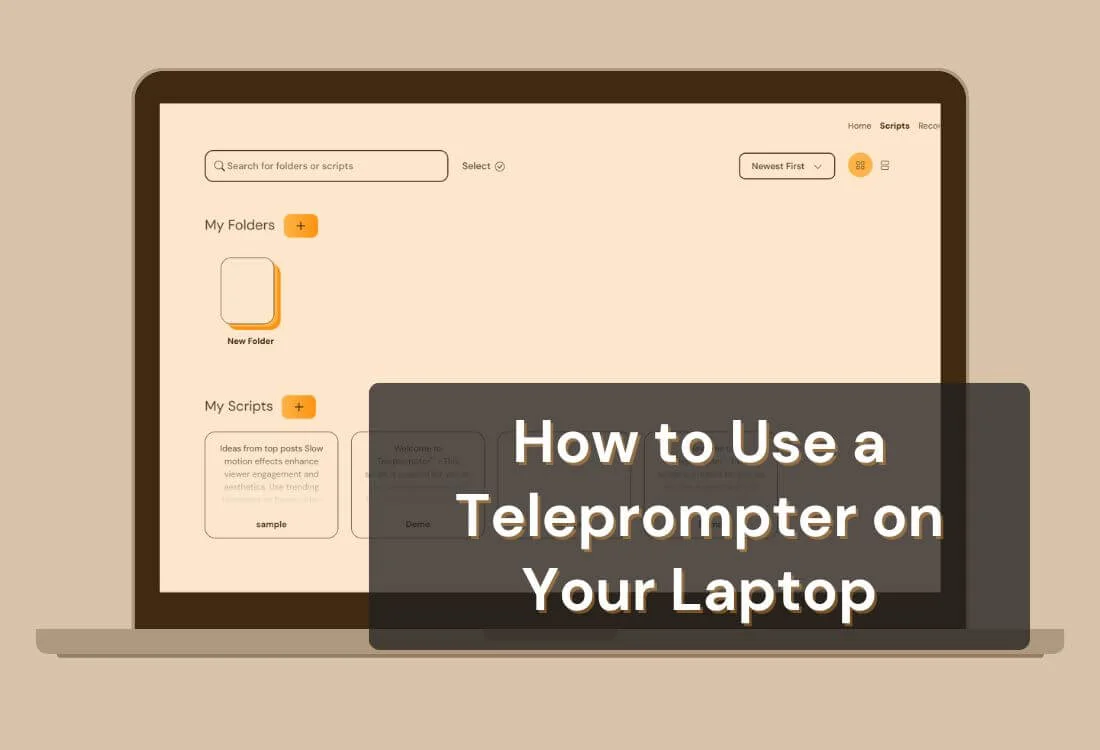


News anchors, executives, and YouTube creators have one habit in common: they almost never speak to a camera without a script in front of their eyes. The trick used to require a $500-plus glass rig and a tripod. Now your laptop does the same job for free.
A laptop teleprompter is software that scrolls your script on screen so you can read it while maintaining eye contact with your webcam. More than 1 million creators have recorded millions of videos on Teleprompter.com, and the latest video marketing statistics show 91% of businesses now use video as a marketing tool. A growing share of those videos are recorded on laptops by a single creator with no studio support. The gap between professional delivery and what you already own has never been smaller.
This guide walks through the laptop teleprompter setup that actually works: the gear you do (and don't) need, how to keep eye contact when the camera is built into the lid, the most common mistakes, and how to record polished videos in your browser.
Physical teleprompter rigs (also called autocue systems in broadcast) have one job: scroll text near a lens. Laptop teleprompters do that and a lot more, because they're connected to the rest of your workflow. See the full breakdown of teleprompter app features for everything included beyond scrolling.
Three capabilities only software teleprompters offer:
Physical rigs still win for high-volume broadcast, where you have an operator and a fixed studio. For everyone else, a laptop teleprompter does more with less. These software-only capabilities are common across device-agnostic setups, see our guide to using a teleprompter app for video recording for more on everyday recording use cases.
For many presenters, voice-driven scrolling and cross-device sync are the two features that make the biggest difference in day-to-day use. Here's how one user describes the experience:
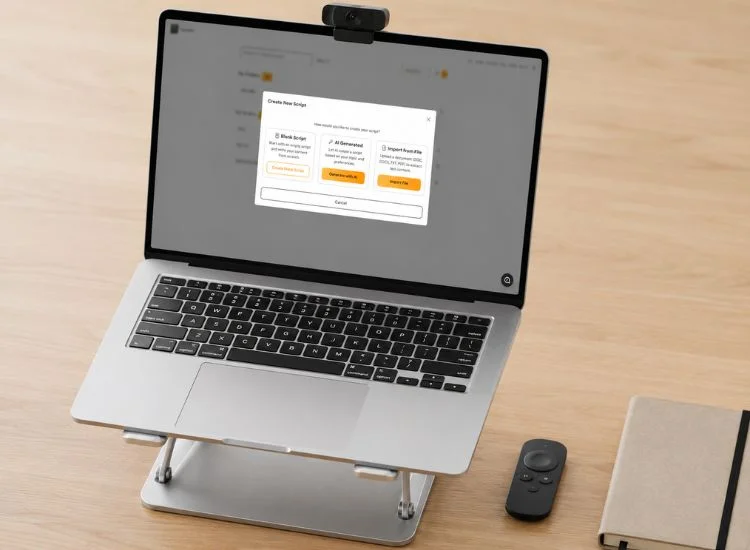
A laptop teleprompter keeps your full script visible while you speak, removing the two biggest barriers to camera confidence: memorization and the temptation to glance away. Because the software runs in your browser, you skip the expensive glass equipment, the studio gear, and the install process.
With Teleprompter.com, you can paste a script, adjust the scroll speed, and start recording within seconds. For the classic glass-based setup and why it supports natural eye contact, see how a teleprompter glass works.
The bare minimum is a laptop with a webcam and a browser. That's enough to start. The list below covers the extras that take your setup from "works" to "looks like you know what you're doing."
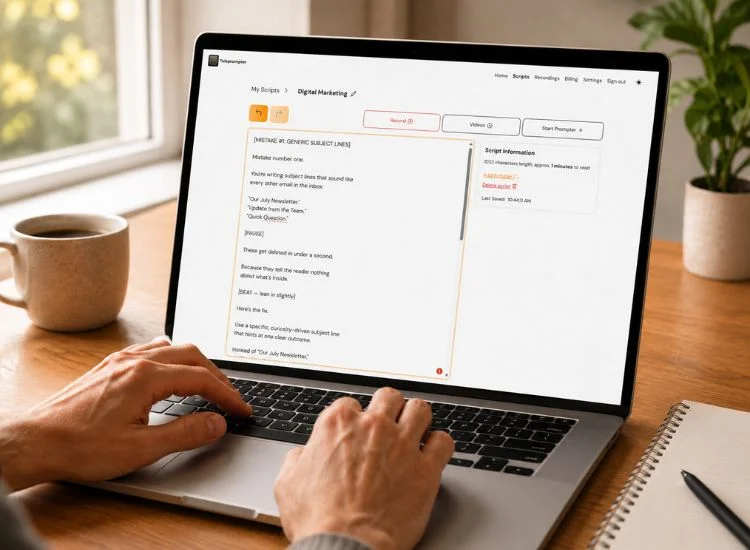
Using a laptop teleprompter makes presenting easier, but mastering delivery takes practice. The goal is to sound natural, like you're speaking, not reading. A few intentional techniques can make your performance feel confident, polished, and engaging.
Your voice should guide the teleprompter, not the other way around. Start by reading your script aloud while adjusting scroll speed until it feels comfortable. Most presenters find a moderate pace, around the speed of a casual conversation, creates the best rhythm.
Pause after key points to let ideas settle. You can add line breaks to mark those pauses and maintain a steady flow. The goal is to keep your words in sync with your gestures and tone.
The hardest part of laptop teleprompting is that the camera and the script can't share the exact same spot. Your eyes will drift. For more on why this matters, see the impact of eye contact on presentations. Three techniques close the gap:
Even short practice sessions improve confidence and pacing. Rehearse once while recording yourself to catch areas where you may sound rushed or monotone. Then adjust scroll speed, text spacing, or phrasing before your actual presentation.
Practicing also helps you get comfortable with Teleprompter.com's controls, so you can make quick adjustments without breaking focus. A few minutes of rehearsal ensures smoother performance when it matters most.
Not every teleprompter setup fits every use case. Here's how the four most common options compare:
Teleprompter.com runs in any modern browser, which means the laptop, phone, and tablet rows above all use the same account and the same scripts. You can write a script on one device and present it on another without exporting anything.
For most creators, educators, and remote professionals, a laptop teleprompter hits the right balance of cost, setup speed, and quality.
A laptop teleprompter setup becomes far more efficient with the right platform.
Teleprompter.com transforms your laptop into a professional-grade prompting tool designed for creators, educators, and professionals who need clear, consistent delivery. It's browser-based, so you can access it instantly without downloads or installations.
Since Teleprompter.com runs online, it works on Chrome, Safari, Edge, and Firefox. You can sign in, paste your script, and start presenting within seconds. The web interface is intuitive, ideal for both first-time users and experienced speakers.
Because it's cloud-based, your scripts stay accessible from any device. You can start preparing on one laptop and finish presenting on another. This flexibility saves time and helps you maintain a consistent workflow.
Personalization is key to a smooth presentation. With Teleprompter.com, you can control every visual and pacing element. Adjust font size, text color, background contrast, and scroll speed in real time. You can even choose manual or automatic scrolling depending on your preference.
For a more polished result, try the mirror mode feature when using reflective glass or beam splitters. It keeps your text aligned correctly for camera setups while maintaining readability on screen.
Teleprompter.com includes VoiceGlide, which listens to your voice and adjusts scroll speed automatically, pausing the instant you stop talking and resuming the moment you speak again. This keeps your script perfectly timed, even when you change tone or pause.
You can also use a remote control or your smartphone as a wireless controller to scroll text hands-free. These features keep you in control during long recordings or live presentations.
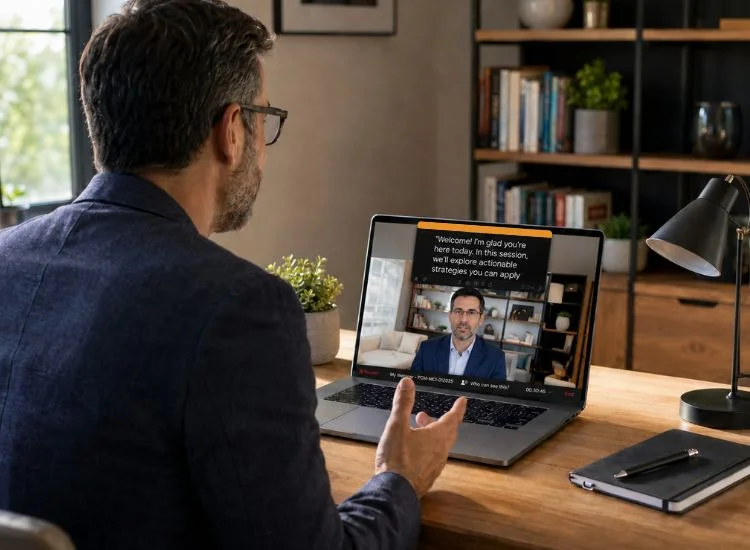
A laptop teleprompter can adapt to nearly any communication setting where clarity and structure matter. It's a valuable tool not just for professional presenters, but also for educators, remote workers, and digital creators who rely on consistent delivery.
Speaking naturally on video calls can be difficult when juggling slides, notes, or scripts. Online teleprompter benefits like this let you keep your talking points visible while maintaining steady eye contact with the camera.
You can place your script window beside or above your meeting platform to stay organized and composed. This setup helps you sound prepared without appearing rehearsed, making virtual presentations smoother and more professional. This works whether you're on Zoom, Google Meet, or Teams, see how to use a teleprompter on Zoom calls for platform-specific setup tips.
When recording tutorial videos, a laptop teleprompter provides structure and consistency for educators and trainers alike. It ensures lessons follow a logical flow and prevents pauses or missed details during long recordings.
Adjusting scroll speed, font size, and spacing helps keep your eyes relaxed and your voice natural. Once scripts are ready, you can reuse them for future sessions or adapt them for different topics, saving time while maintaining a consistent teaching style.
Video creators and marketers often need to deliver information clearly without multiple retakes. A teleprompter helps maintain tone, pacing, and alignment with your message while keeping performance authentic.
By syncing your script with your recording setup, you can focus on expression, camera angle, and delivery rather than memorization. The result is a more engaging and confident on-screen presence.
During webinars or virtual pitches, timing and structure are critical. A teleprompter helps presenters follow key points, maintain flow, and finish on schedule.
Teams can also collaborate on shared scripts before going live, ensuring every speaker maintains a consistent tone and message. This preparation helps complex ideas sound simple and confident during high-stakes moments.
The difference between a video that feels rehearsed and one that feels natural is often just a script you don't have to memorize. With Teleprompter.com, you can paste your script, adjust scroll speed, and start recording in any browser within 60 seconds. No expensive hardware. No software install. No studio.
The Free plan handles most everyday recording, including VoiceGlide voice-activated scrolling, multiple remote control options, and unlimited cloud script storage across all your devices. Pro, Max, and Team plans add 4K recording without a watermark, AI script generation, subtitle generation, and shared workspaces.
A laptop teleprompter is software that displays a scrolling script on your screen so you can read while looking into the webcam. It works in your browser and replaces the bulky glass-and-mirror rigs used in broadcasting.
Yes. Teleprompter.com's free Starter plan runs in any browser and includes voice-activated scrolling, remote control options, unlimited cloud storage, and 1080p export. Paid plans add 4K recording, AI script generation, and shared workspaces.
Teleprompter.com is the best option for laptop users because it runs in any browser, requires no installation, syncs scripts across devices, and includes VoiceGlide and remote control on the Free plan. It works on Windows, macOS, and ChromeOS.
Yes. Open Teleprompter.com in a browser tab below your webcam, then open Zoom or Google Meet beneath it. Your script stays visible while you maintain eye contact. The setup also works on Microsoft Teams, Webex, and Slack Huddles.
For a 13 to 15 inch laptop at arm's length (around 24 inches), 40 to 60 point text works for most readers. For smaller laptops or further filming distances, increase to 70 to 90 point. Larger text means less eye movement and more natural delivery. Teleprompter.com lets you adjust font size in real time.
No, your built-in webcam works. An external webcam improves video quality and lets you position the camera closer to your script for more natural eye contact, but it's optional. Raising the laptop to eye level with a stand also helps.


.png)


.png)