
After recording your video in Teleprompter.com, you can easily save or share it across platforms. However, please note that videos are not automatically saved to your device’s gallery or camera roll—you need to export them manually.
On iOS/macOS and Android:
Right After Recording:
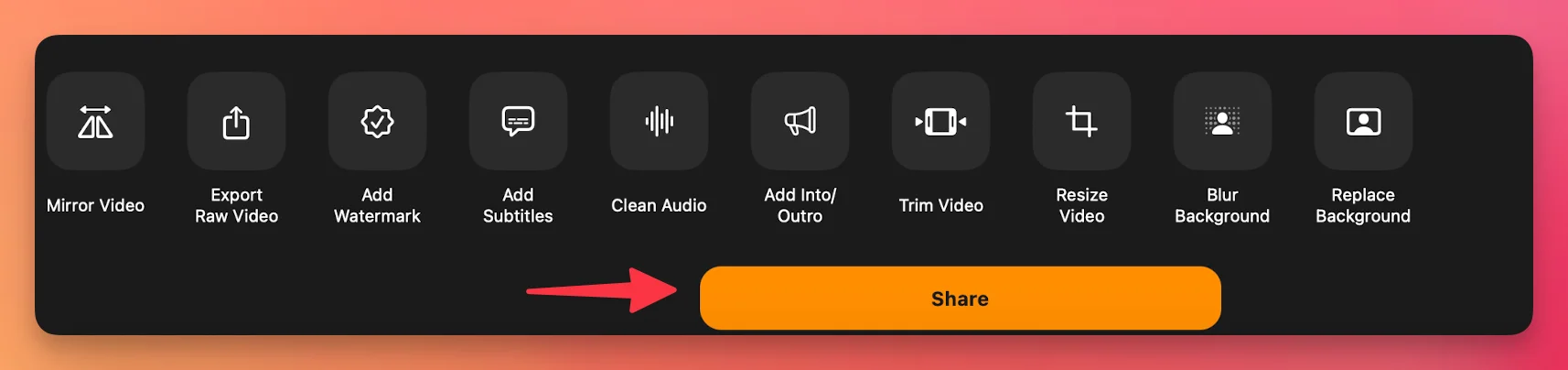
- When the recording ends, you’ll see multiple editing and export options
- Tap the yellow “Share” button
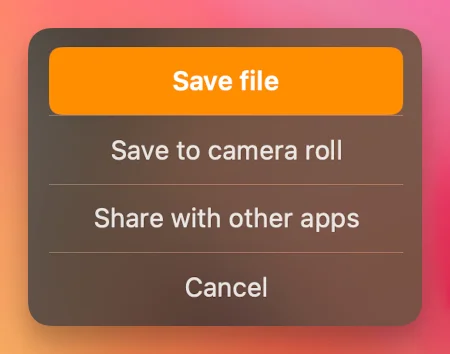
- Select “Share with Other Apps” to send your video via:
- Social media (Instagram, TikTok, Facebook, etc.)
- Email or messaging apps
- Cloud storage
To save to your camera roll, tap “Save to Camera Roll” from the same menu.
To Share or Save Later:
- Open the Teleprompter.com app
- Go to the Recordings panel
- Tap the video you want to export
- Tap the Share button
- Choose from:
- Save to Camera Roll
- Save File
- Share with Other Apps
Note: All recordings are saved automatically within the Recordings section of the app—but they will only appear in your device’s gallery if you manually export them.
On Web Browser:
- Go to https://app.teleprompter.com/
- Sign in to your account
- Click on the Recordings tab
- Select the video you want to export
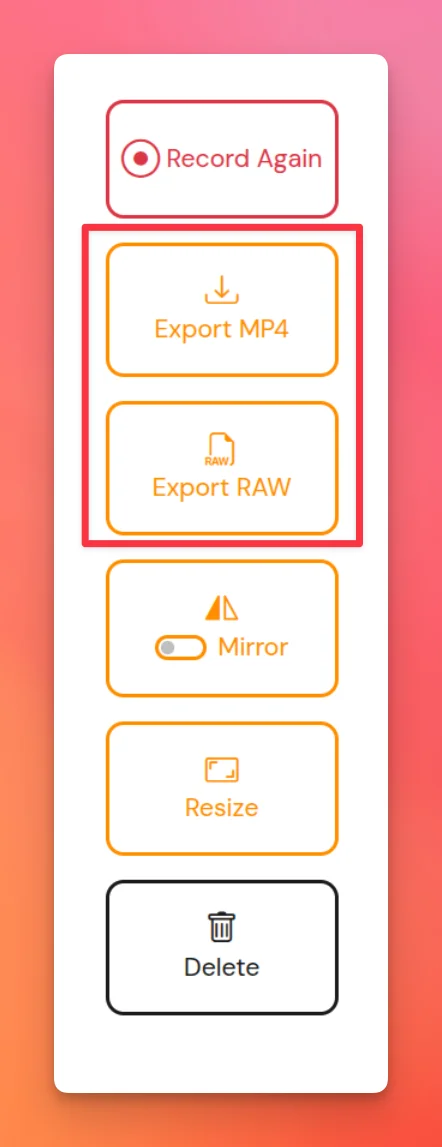
- At the bottom of the video, click Export MP4 to download the final version with all your edits applied
Getting the Original, Unedited Recording
Export Raw is available to PRO users only, and the button sits on the video recording screen rather than in the Recordings list. It links straight to the raw recording—or to several raw files, if your take was split into multiple slices. It is available on iOS, macOS and the web version. For the full details, see Where is my original, unedited recording?
This gives you full flexibility depending on how you plan to use your video.


.png)


.png)