
Background replacement is available for iOS, macOS and Android versions
Want to give your videos a more professional look or change the setting without reshooting? The Remove Background feature on iOS/macOS lets you do just that—whether you're using a green screen or not!
Here’s how to access it:
- Go to the Recording section in the app.
- Select the video you want to edit.
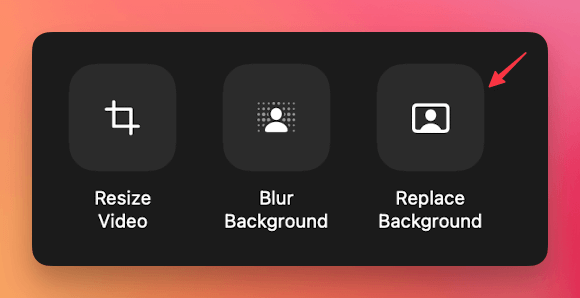
- A few editing options will appear—look for Remove Background and tap on it.
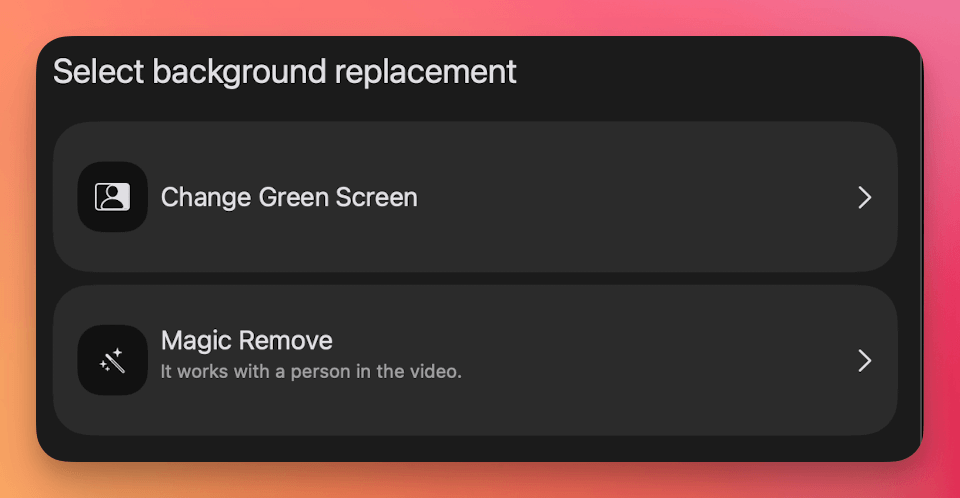
- Inside Remove Background, switch between the two ways of separating you from your background:
- Choose chroma key / green screen replacement if you filmed against a physical green screen.
- Choose Magic Remove if you didn't use a green screen. This will automatically detect and remove your background with AI so you can replace it with an image, similar to using a virtual green screen.
Please note that the key colour, tolerance and spill suppression cannot be adjusted at the moment.
Not sure which option fits your setup? See Green screen vs Magic Remove.
This feature is perfect for customizing your background and creating polished, dynamic videos directly from your iOS device.
Still need help? Reach out anytime at support@teleprompter.com or go to Settings > Contact Support inside the Teleprompter.com app. We're here for you!


.png)


.png)